
PDF Bates Numbering Software – Batch Add Page Numbers to PDFs
Our PDF Bates Numbering Software lets you add page numbers to multiple PDF files at once, in a batch. You can include additional text like 'Confidential' or the current date along with the Bates stamp, and position it anywhere at the top or bottom of the page. The tool works even on encrypted PDFs by removing encryption first. It offers various formatting options for Bates numbers, supports adding numbers to selected PDFs or entire folders, and lets you add prefixes and suffixes. You can also directly print hard copies using the 'Print' option.

PDF Bates Numbering Software – Main Features
- Number PDF Files: Add Bates numbers to all pages of multiple PDF files. Use 'Move Down' and 'Move Up' to arrange PDF files in order.
- 2 Ways to Stamp Bates: Insert Bates numbers page-wise or add PDF page numbers for file-pages combination.
- Erases PDF Encryption: A checkbox 'Remove Encryption from PDF file(s)' is provided to remove encryption from resultant PDF documents.
- Font Setting Options: Choose from various font families, any of 120+ shades, and sizes from 8 to 72 for Bates numbers.
- Bates Location Setup: Position Bates numbers at bottom-left, bottom-right, bottom-middle, top-left, top-middle, or top-right.
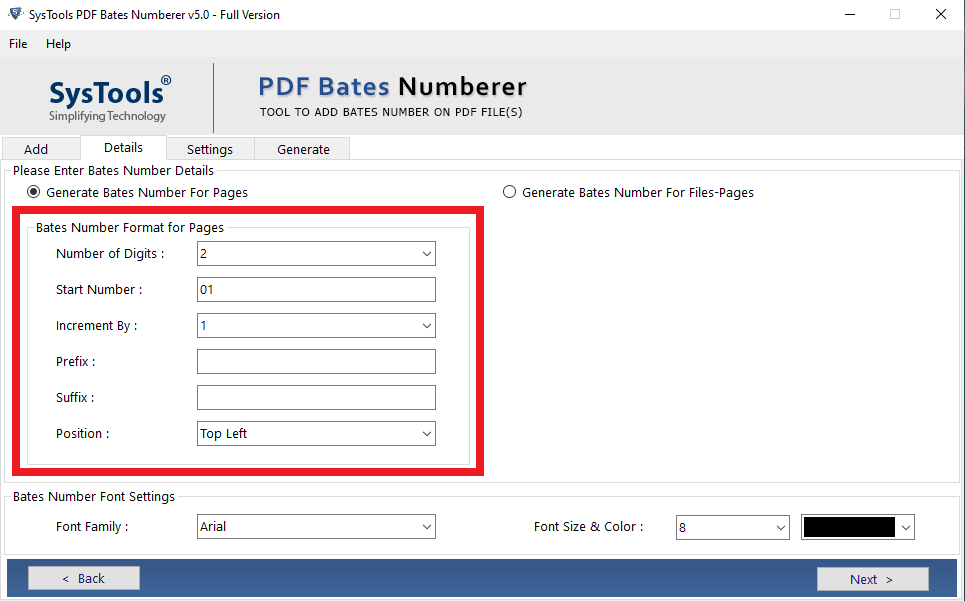
- Format Page Number: Options include Start Number, Increment By, Suffix/Prefix, and Number of Digits. Position Bates anywhere on top and bottom of the page.
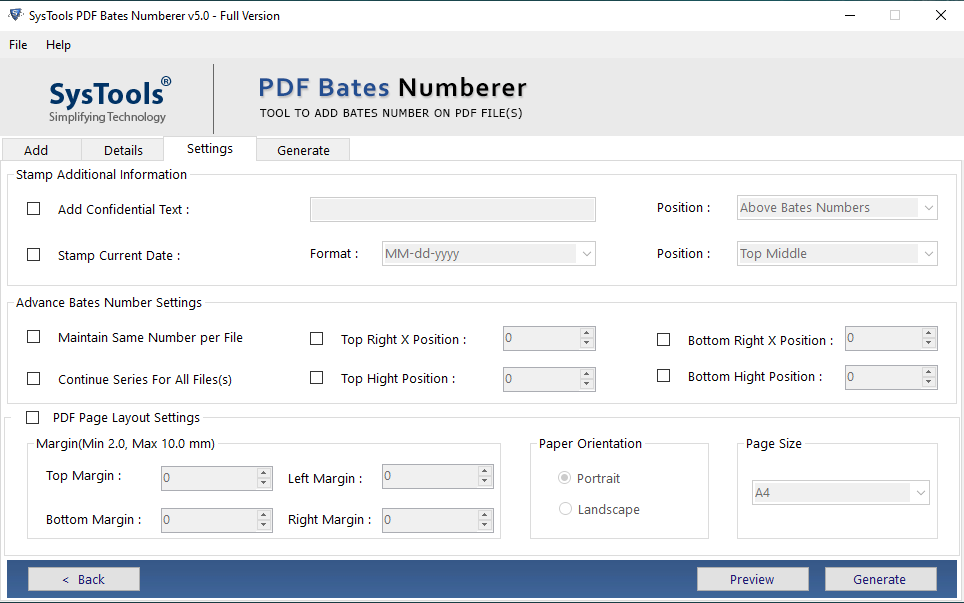
- More Info Inclusion: Insert additional text along with Bates numbers and set its position (e.g., top middle/right, bottom middle/left/right).
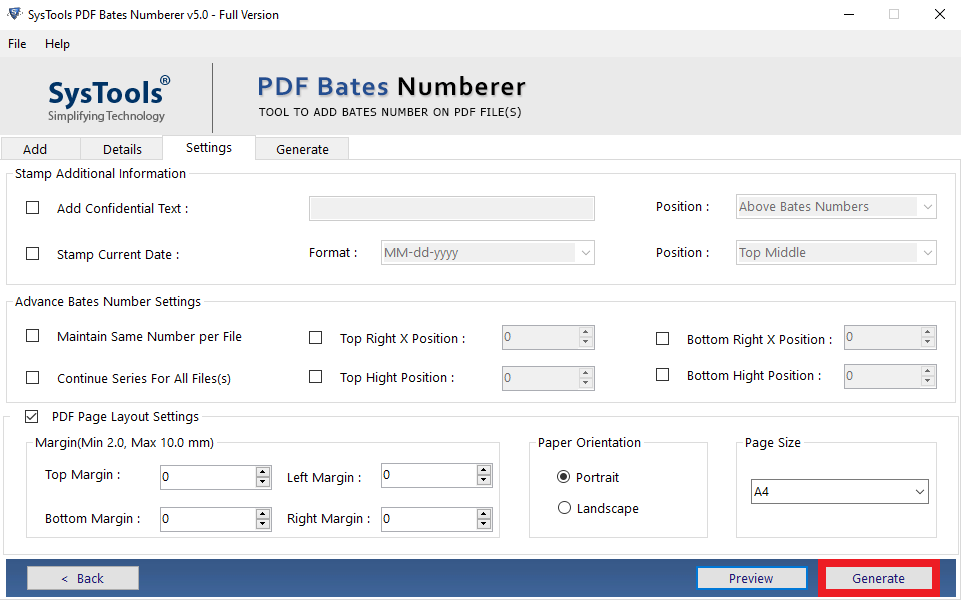
- Advance Bates Settings: Choose to maintain the same number per file or continue the series across all files, and set its position accordingly.


PDF Bates Numbering Software – How-to Guide
- Step 1: Install the Bates numbering software by accepting the terms and conditions on any Windows or Mac machine.
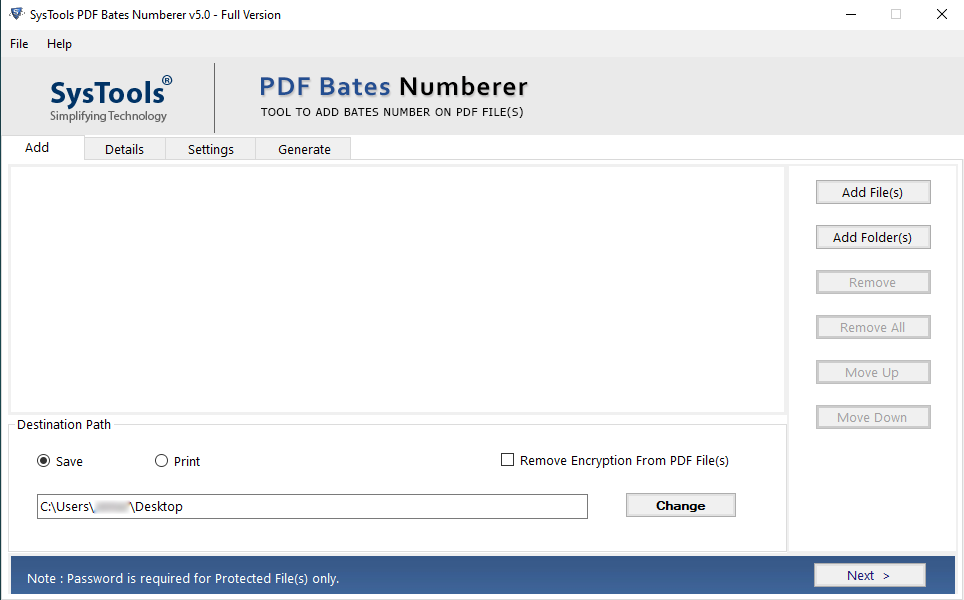
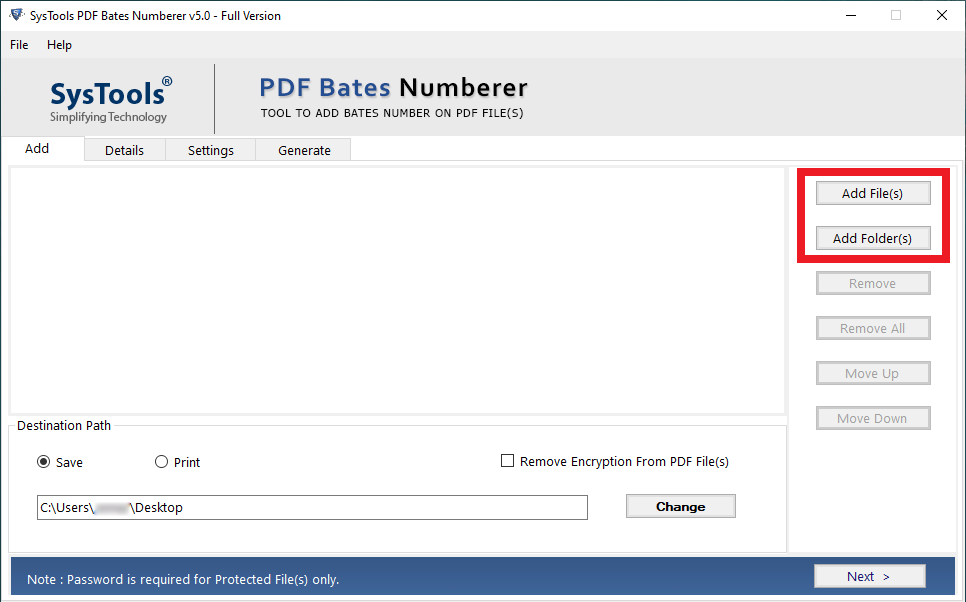
- Step 2: Add a single PDF file via 'Add File' or multiple PDF documents via 'Add Folder'. You can also change the saving location or choose to print. Press Next.
- Step 3: In the 'Details' section, fill in Suffix, Prefix, Number of Digits, Start Number, Increment By, and position. Under 'Bates Number Font Settings', choose font style, size, and color. You can generate Bates for file-pages combination as well. Click 'Next'.
- Step 4: In the 'Settings' section, you can do advanced settings. Click 'Preview' to check the PDF page with added Bates settings.
- Step 5: Once satisfied with the preview, click 'Generate'.
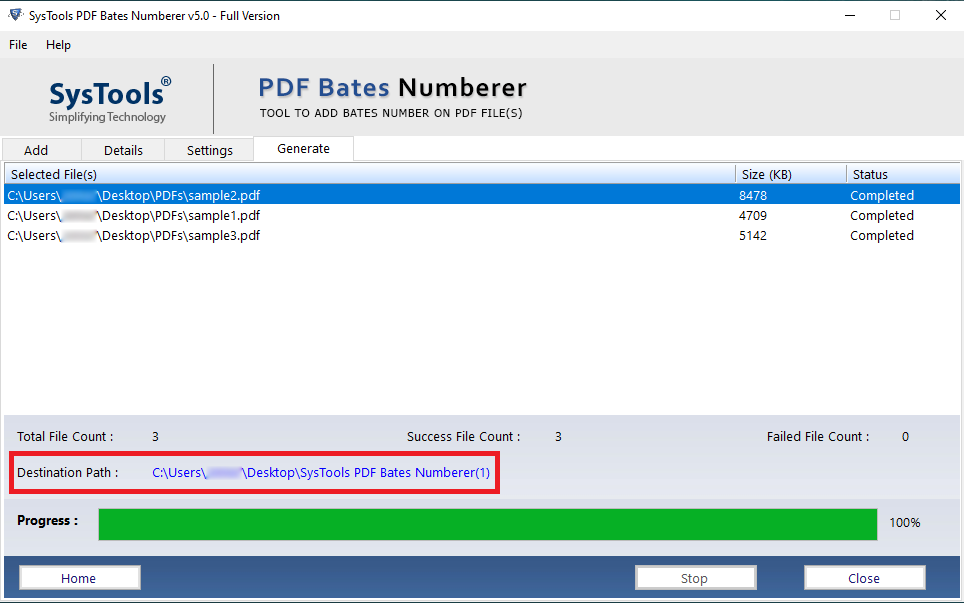
- Step 6: Click on the link-path to get the resultant PDF files.
PDF Bates Numbering Software – Customer Reviews
I found the Bates Numberer tool very effective and efficient in adding page numbers to PDF documents. Its ability to add Bates to multiple files at once is truly appreciable.
PDF Bates Numberer is a really marvelous utility with numerous enhanced capabilities. Working with the application was amazing as its interface was simple and very easy to understand. I would really like to thank the team.
It is an amazing utility to insert Bates numbering in multiple PDF documents with proper sequence. I would like to thank for this essential tool.
This Bates Numbering software is working great to add stamps in footer/header on multiple PDF files. The interface of this utility is such an amaze to use.
PDF Bates Numbering Software – Frequently Asked Questions
Is it possible to insert Bates numbers on PDF documents in batch?
Yes, it is possible to add Bates numbers in batch on PDF files.
Does this Bates numberer tool work on encrypted PDF files?
Of course, the PDF Bates numberer tool will effectively work on encrypted PDF documents.
Is it required to install Adobe Acrobat for this tool?
Absolutely not, the Bates Numbering Software doesn't require Adobe Acrobat installation.
Is it possible to insert prefix and suffix in PDF documents?
Yes, you can insert the prefix and suffix in PDF documents.
Can I get this tool for Mac OS X?
Yes, the Mac OS version of the tool is available. Click on the 'Buy' link and choose for Mac.
© Copyright 2012-2026. All Rights Reserved BatesNumberer.com